How is the dialogue system configured?
The system is designed to be fully "Plug & Play". It does not require complex configuration; simply by using the "createDialogue" macro, you have the system ready to work.
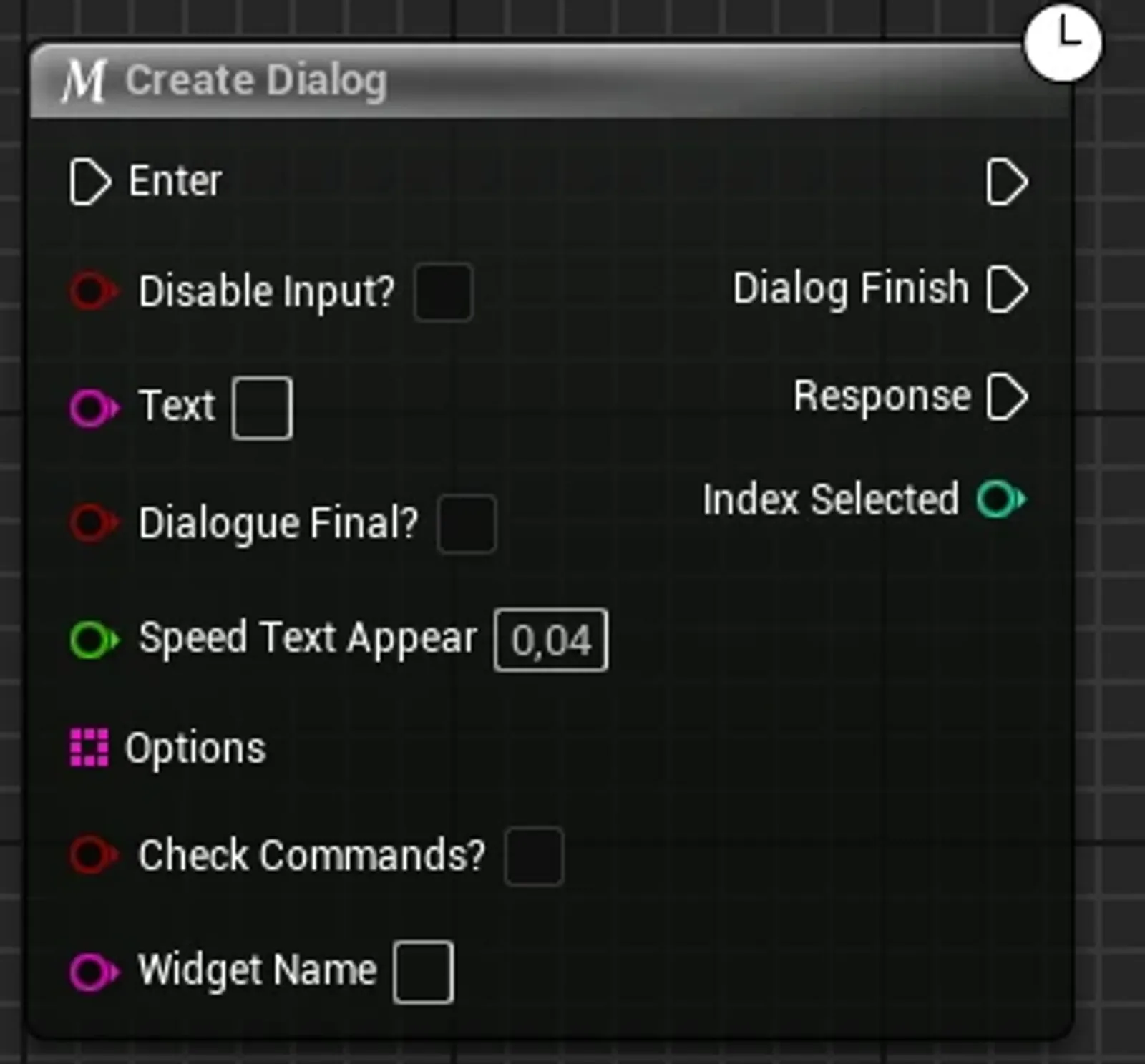
Input Nodes
- DisableInput: Disables player input while the dialogue is active.
- DialogueFinal: Automatically returns control to the player when closing the dialogue.
- Speed text appear: Controls the appearance speed of each word.
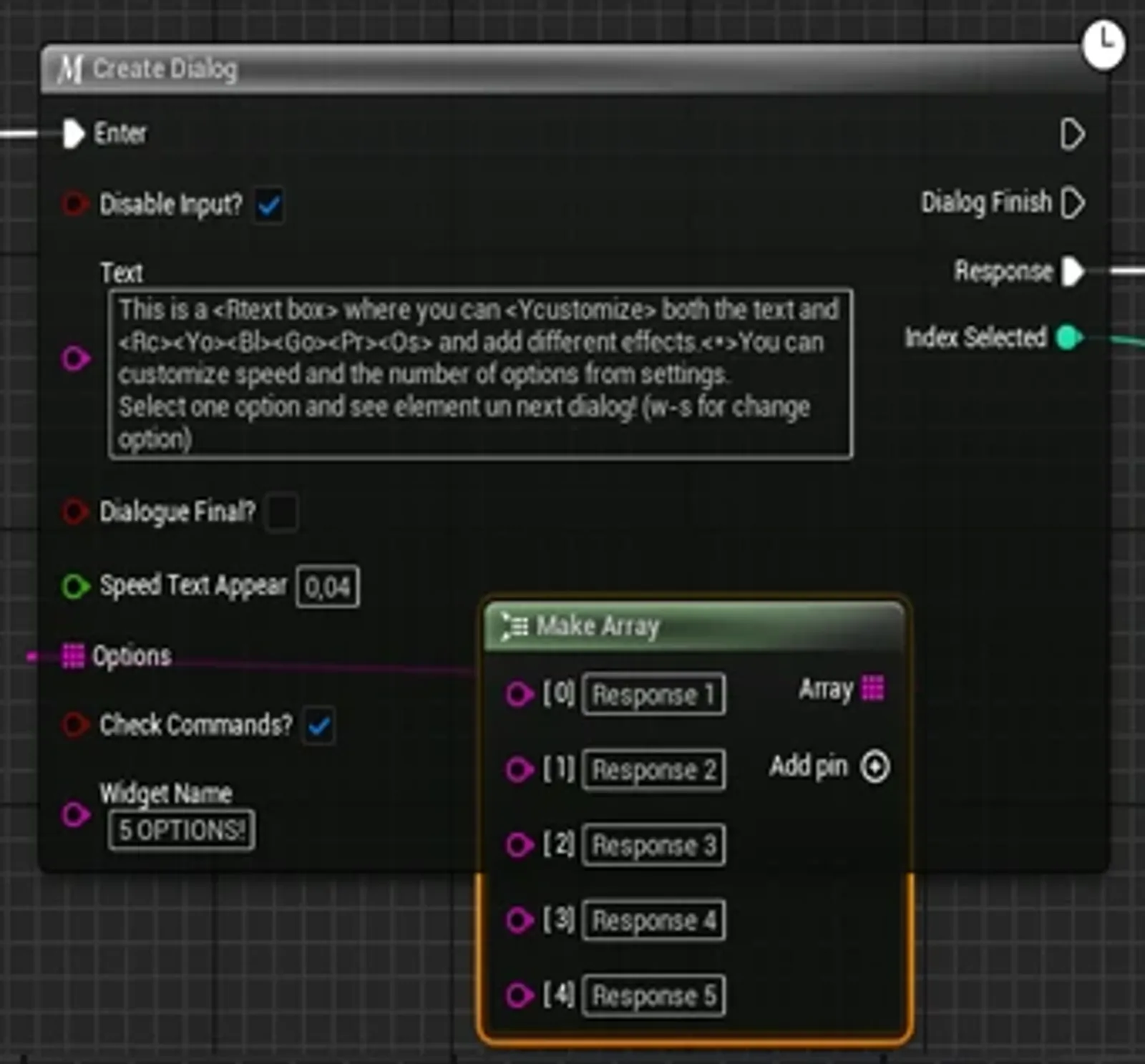
- Options: Allows passing an array of texts to create interactive response options.
- Check commands: Checks if the text contains special commands. Use it like
<R>if you want the text to be shown literally without being interpreted as a command. - Widget name: Defines the NPC name that will appear in the top left of the widget.
Text Commands
You can customize the text style directly from the Text parameter using commands:
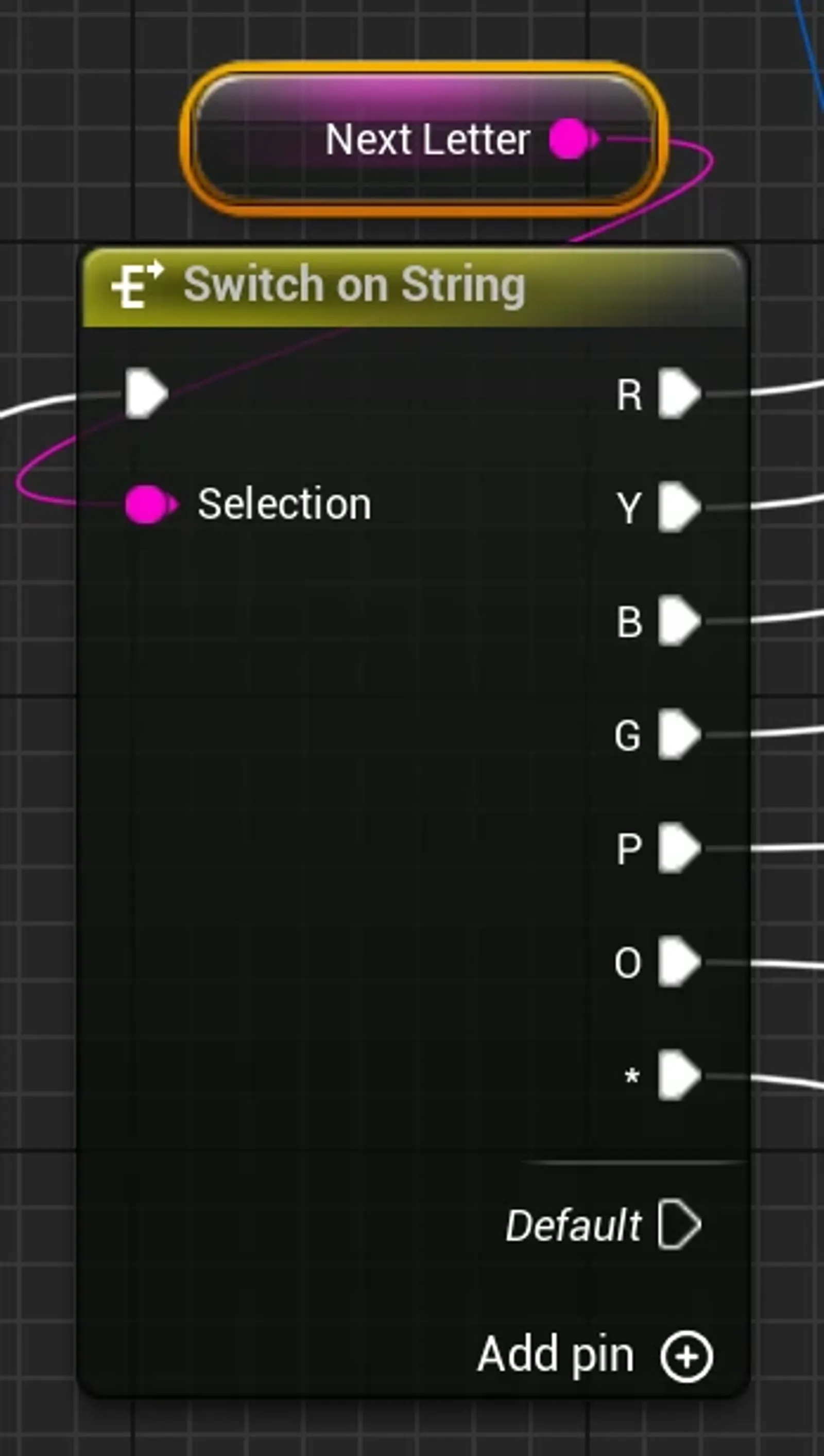
<B>: Changes the letter color to Blue.<R>: Changes the letter color to Red.<Y>: Changes the letter color to Yellow.<G>: Changes the letter color to Green.<*>: Creates a line break.
* You can add or modify these custom commands in the system's Switch.
Output Nodes
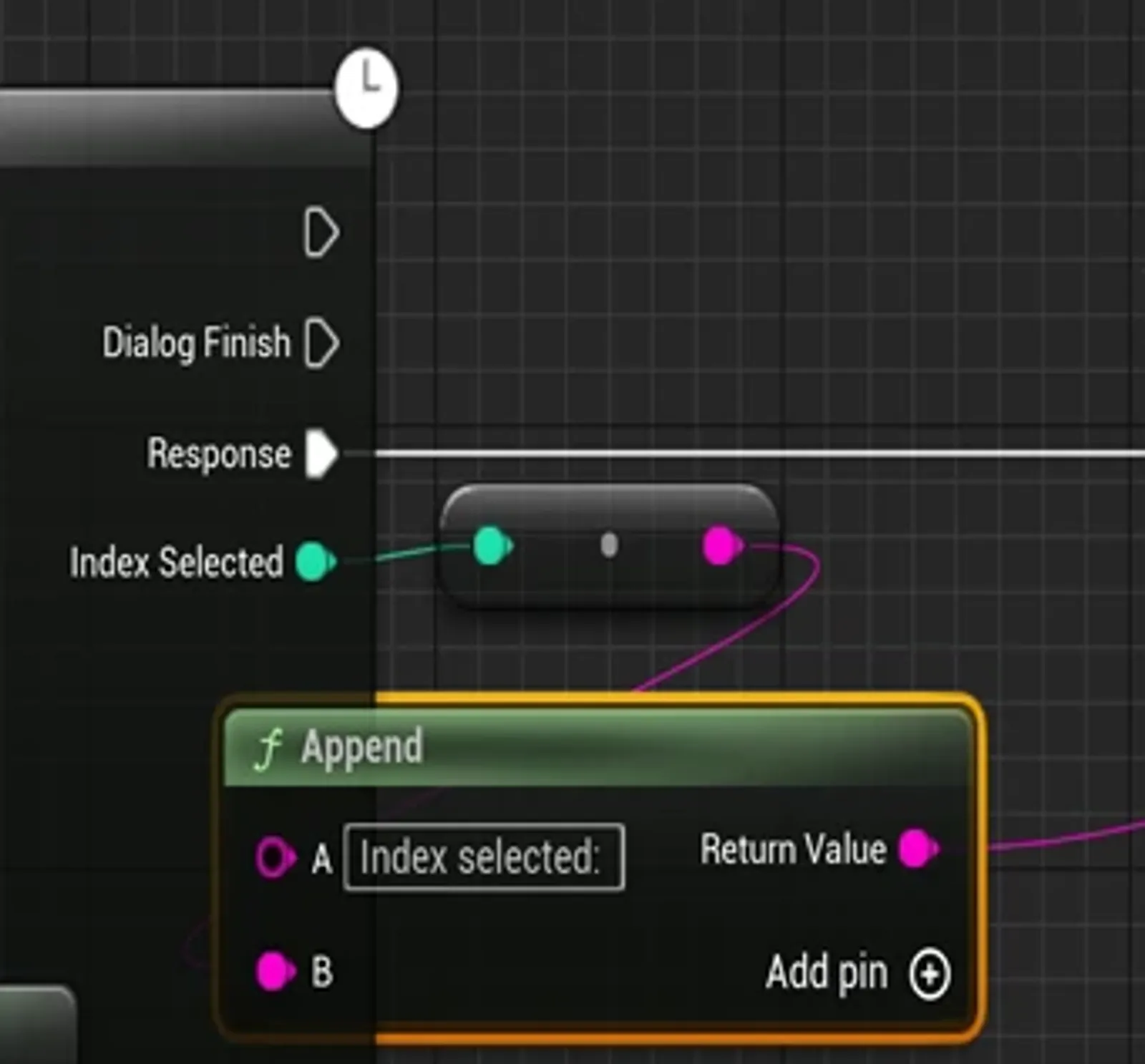
The system has 3 main output nodes:
- First node: Executes immediately when the dialogue is shown.
- Second node: Activates when the player closes the dialogue.
- Third node: Executes when the player chooses a response, returning the index of the selected option.
Customization
The dialogue widget is fully flexible. You can easily modify the layout, fonts, colors, and animations to integrate perfectly with your project's aesthetics.